![3.svg]](https://help.redpocket.com/hubfs/3.svg)
After listening to a voicemail, you can save it to your inbox. If you use Visual Voicemail, saved messages will still be there even if you delete and reinstall the app later.
However, saved messages aren't permanent. If your voicemail inbox gets reset on the backend, for example, due to a line cancellation and reactivation, or a network switch, everything in the inbox, including saved messages, will be permanently erased from both your voicemail inbox and the Visual Voicemail app.
For this reason, saving a message to your inbox isn't the best long-term way for retaining voicemail messages. If a voicemail matters to you, download or export a copy of the audio file instead, and store it on your computer or in the cloud. This is the safest way to make sure you never lose an important message.
There are two types of voicemail inboxes: Standard Voicemail and Visual Voicemail. With Standard Voicemail, you dial a number and use your phone's keypad to manage your messages. With Visual Voicemail, messages are managed through an app instead.
Saving voicemails with standard voicemail
Standard Voicemail has no built-in export feature. A common workaround is to play the voicemail aloud and record it using your device's screen recording tools or another audio recording method.
This is one of the reasons we recommend Visual Voicemail: saving messages is much simpler with an app interface. If you haven't set up Visual Voicemail yet, read this to learn how.
Saving voicemails with Visual Voicemail
With Visual Voicemail, exporting audio is quick and easy since you can save the file directly from the app. Here's how:
Steps on Android
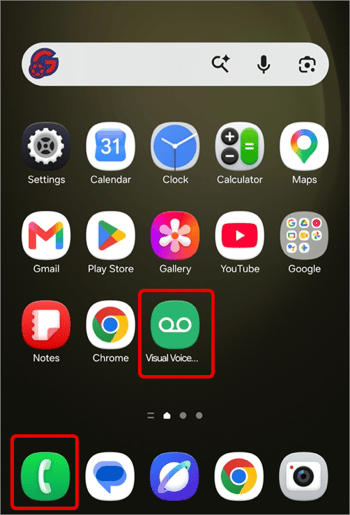
- Open the Phone app and look for the Voicemail tab or search for a Voicemail application.
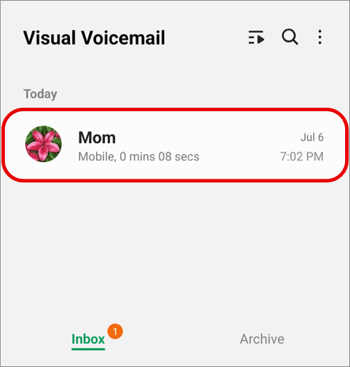
- Tap a voicemail message to expand it and display action options.
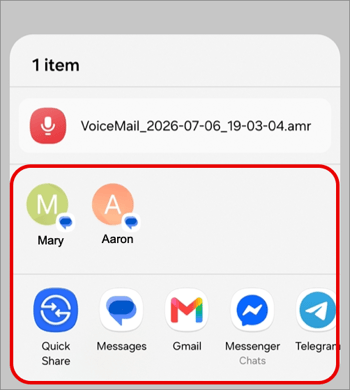
- Tap the Share button.
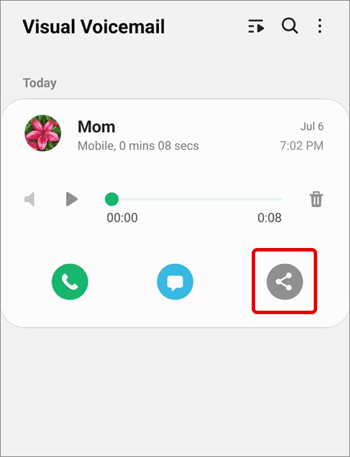
- Choose a method to share or save the audio from the voicemail message. The file will be saved or shared as an .amr or .vmsg file.
Steps on iOS
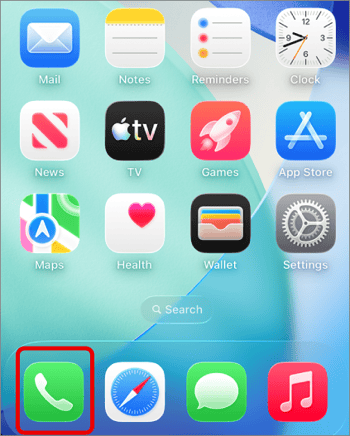
- Open the Phone app.
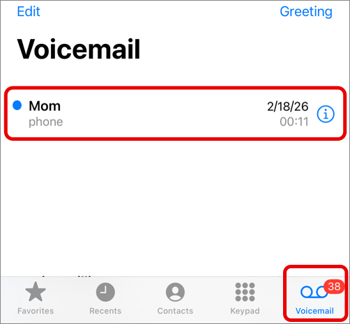
- Tap the Voicemail tab.
- Tap a Voicemail message to export / share.
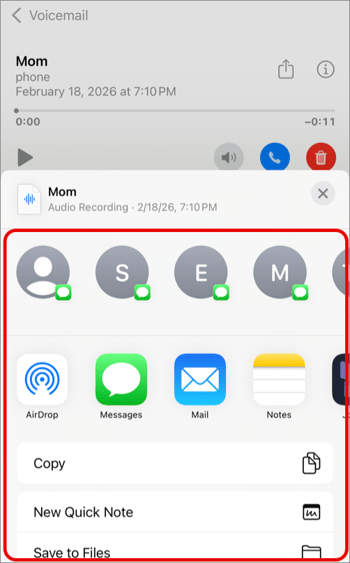
- Tap the Share button.
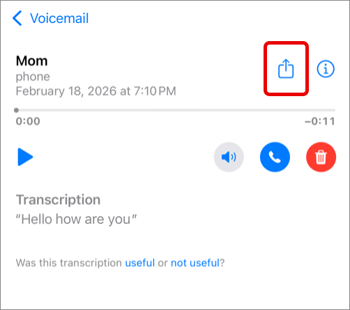
- Choose a method to save the audio from the voicemail message, such as the Save to Files button. The file will be saved or shared as an .m4a file.