![3.svg]](https://help.redpocket.com/hubfs/3.svg)
If you're not getting notified when a new voicemail is left, don't worry — your messages are likely still being delivered. The issue is usually that your phone didn't receive the signal that a new message was waiting. This can happen due to:
- A network sync issue
- Do Not Disturb or Focus mode settings
- Disabled app notifications
- A provisioning delay
Before you begin: Make sure your voicemail inbox is set up.
- GSMA lines: Press and hold 1 on your dialpad and follow the prompts.
- GSMT lines: Press and hold 1 on your dialpad and follow the prompts.
- CDMA lines: Dial *86 and follow the prompts.
If your inbox is already set up, check if your voicemails are coming through. Call your voicemail inbox to see if any messages are there. If messages are present but you didn't receive a notification, proceed with the steps below.
Step 1: Enable Notifications
To jump to the steps for iPhone, click here. To jump to Android steps, click here.
iPhone:
- Tap Settings.
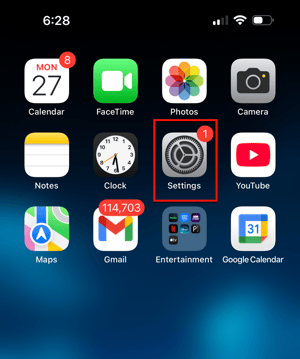
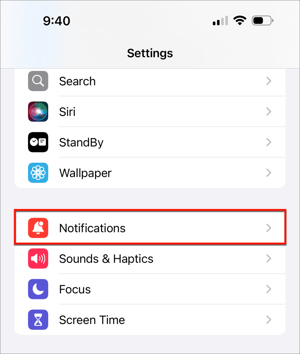
- Scroll down and tap Notifications.
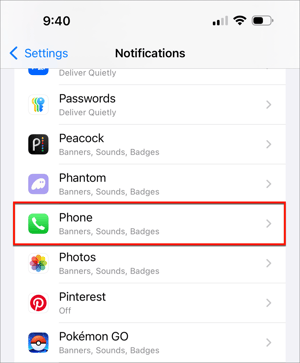
- Scroll down and tap Phone.
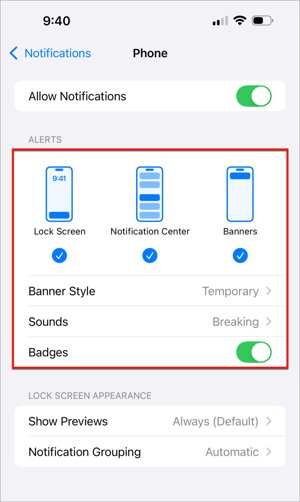
- Toggle Allow Notifications to ON.
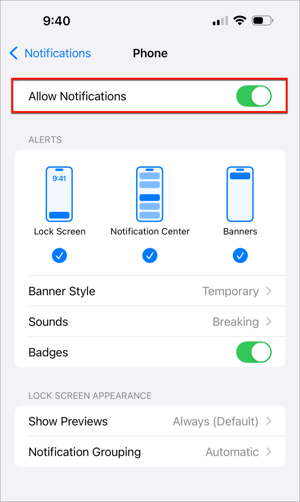
- Select your preferred alert styles — check Lock Screen, Notification Center, Banners, or any combination.
- Toggle Sounds to ON or select a default sound for notifications.
- Toggle Badges to ON to show the notification count on the Phone app icon.
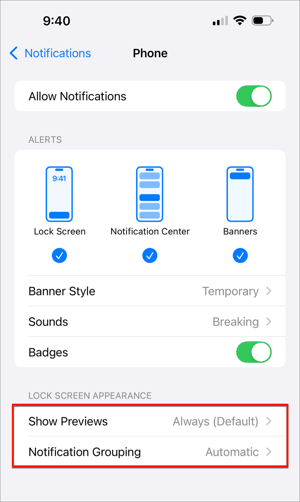
- Select how notifications appear on your Lock screen.
Android:
Steps may vary slightly depending on your device and software version (Samsung, Google Pixel, etc.).
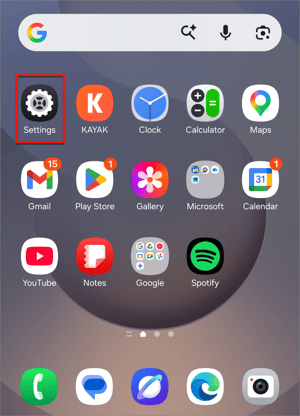
- Tap Settings.
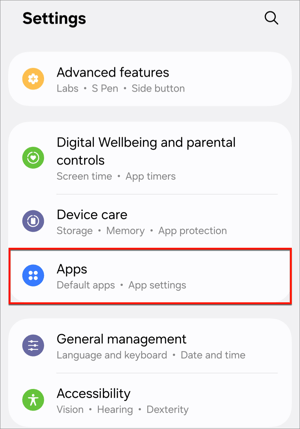
- Tap Apps (or Apps & Notifications, depending on your device).
- Scroll down and tap Phone.
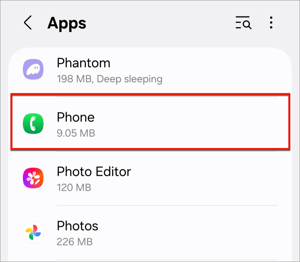
- Tap Notifications.
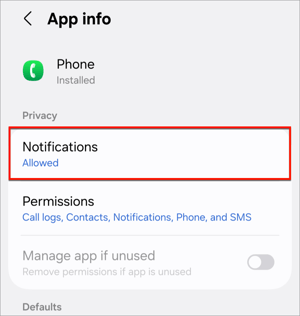
- Toggle Notifications to ON.
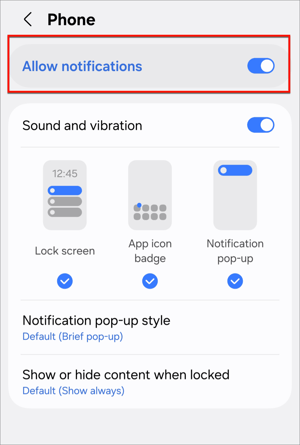
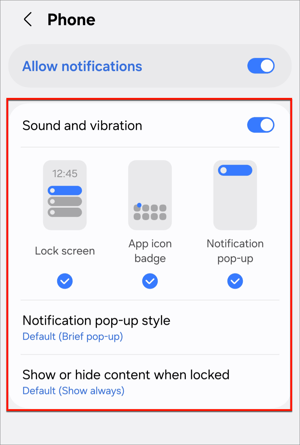
- If applicable, tap Voicemail Notifications to customize alerts further.
- Toggle Sound, Vibration, or Banners to ON based on your preferences.
Step 2: Disable Do Not Disturb / Focus Mode
iPhone:
- Open Control Center by swiping down from the top-right corner of your screen.
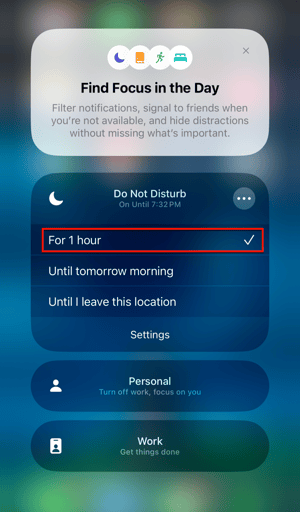
- Tap the Focus icon (crescent moon symbol) if it is highlighted or active.
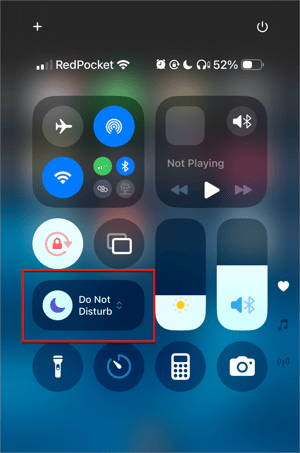
- Tap the active Focus mode (e.g., Do Not Disturb, Sleep, Work) to turn it off.
Android:
Note: Steps may vary slightly depending on your device and software version (Samsung, Google Pixel, etc.).
- Swipe down from the top of your screen to open the Quick Settings panel.
- If needed, swipe down again to expand the full menu.
- Tap the Do Not Disturb icon if it is highlighted or active to turn it off.


On Off
Alternatively:
- Tap Settings.
- Tap Sound & Vibration (or Notifications, depending on your device).
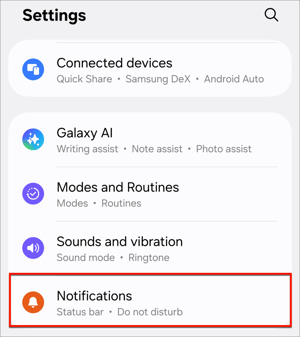
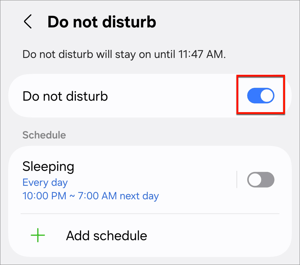
- Tap Do Not Disturb.
If you do not see Do Not Disturb under your Sound & Vibration settings, check under your Notification settings, and vice versa.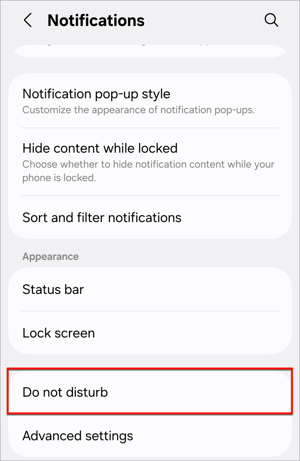
- Toggle Do Not Disturb to OFF.
Step 3: Remove and Re-Insert Your SIM Card
Physical SIM
To reseat your SIM card, locate the SIM tray on the side of your device and use a SIM ejector tool or small paperclip to gently push into the small hole until the tray pops out. Remove the SIM card, place it back into the tray ensuring it fits snugly, then slide the tray back into the device until it clicks into place.
eSIM
Removing and re-installing an eSIM requires a few extra steps. You can remove the eSIM from your device settings, but to reinstall it, you'll need to get a new QR code from your online account and complete the setup process again. Before doing so, please contact us for assistance.
If the issue persists after completing all steps above, please contact us at redpocket.com/contact-us.